Dashboard
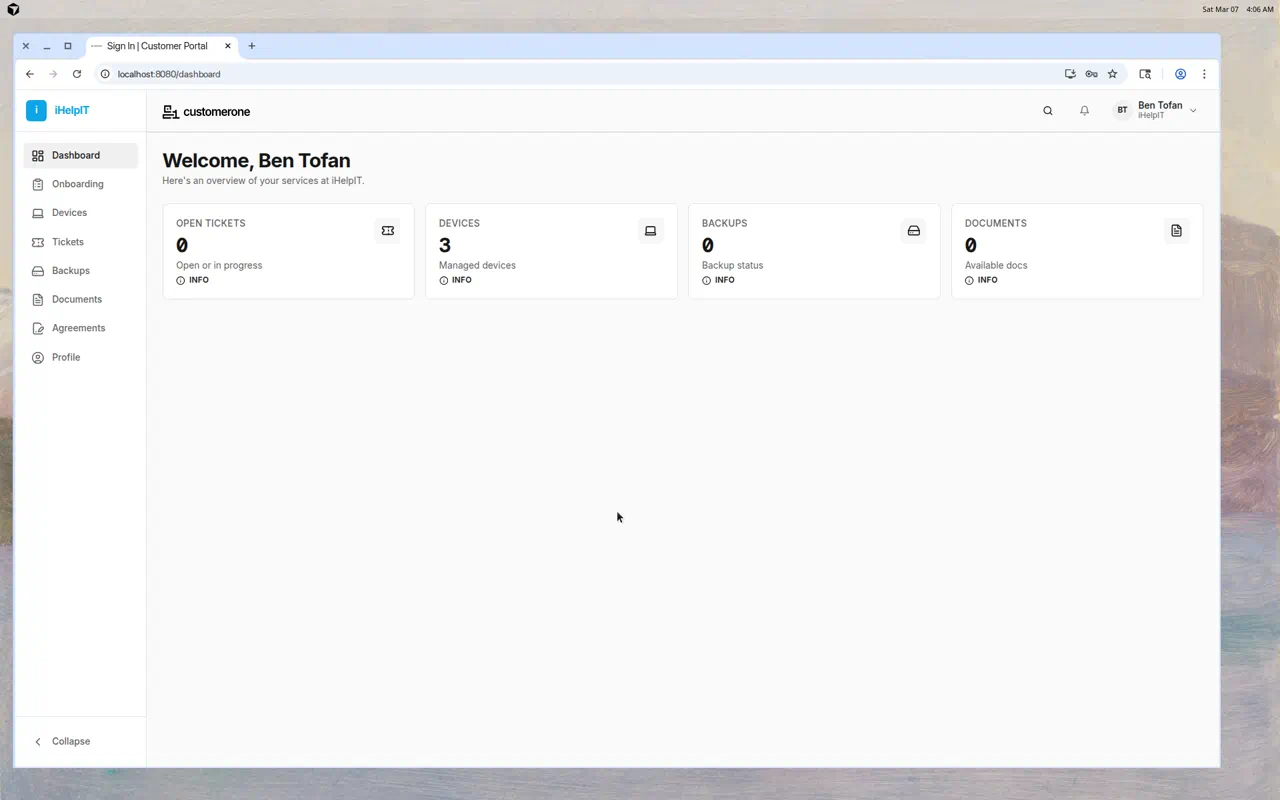
The Dashboard is your home page when you sign in to ClientOne. It gives you a quick summary of your IT services at a glance.
What You'll See
Welcome Message
At the top of the page, you'll see a personalized greeting with your name and a brief description of your services.
Service Overview Cards
Four cards show you key numbers:
| Card | What It Shows |
|---|---|
| Open Tickets | How many support tickets are currently open or being worked on |
| Devices | Total number of managed devices (computers, phones, tablets) |
| Backups | Number of backup jobs being tracked |
| Documents | How many guides and documents are available for you |
Click any card to go directly to that section in ClientOne.
Onboarding Prompt
If your IT provider has set up an onboarding checklist for you, a blue banner appears at the top of the dashboard:
- Shows which step you're on
- Has a Start or Continue button to proceed
- Disappears once onboarding is complete
Navigating ClientOne
Sidebar Menu
On the left side of the screen, you'll find the navigation menu with links to all sections:
- Dashboard — This page
- Onboarding — Your getting-started checklist (if available)
- Devices — Your managed devices
- Tickets — Support tickets
- Backups — Backup status
- Documents — Shared documentation
- Agreements — Service agreements
- Profile — Your account settings
On mobile devices, tap the menu icon to open the sidebar.
Header
At the top of every page:
- Search — Find items across ClientOne
- Notifications — Check for updates
- Your Name — Click to access your profile or sign out
Tips
- Check the dashboard regularly — It's the fastest way to see if anything needs your attention
- Look for the onboarding banner — Complete onboarding steps promptly so your IT provider can finish setting up your services
- Click the cards — They link directly to the detailed pages