Tickets
The Tickets page is where you submit support requests and track their progress. Whether your printer isn't working, you need new software installed, or you have a question, create a ticket and your IT provider will handle it.
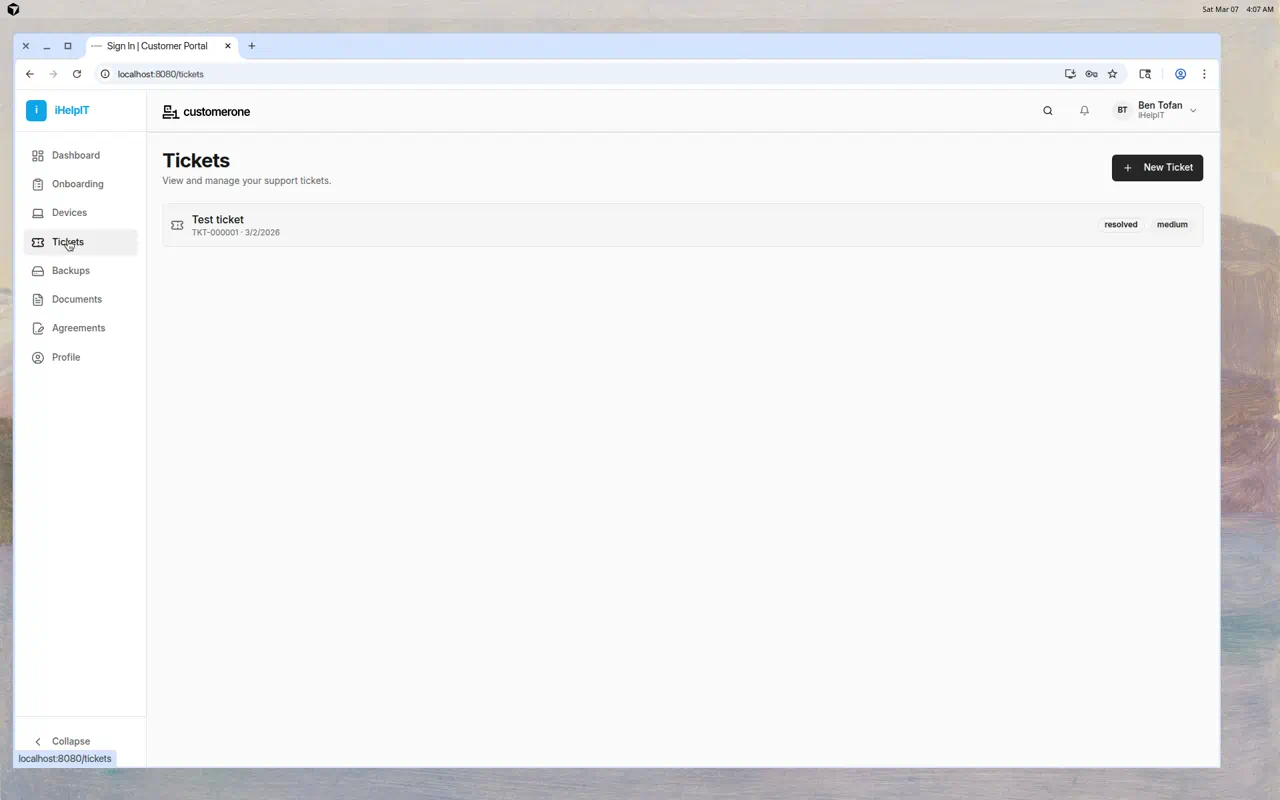
Viewing Your Tickets
The tickets list shows all your support requests with:
- Ticket title — A brief description of the issue
- Ticket number — A reference number (e.g., TKT-000001) for tracking
- Date created — When the ticket was submitted
- Status — Current state of the ticket
- Priority — How urgent the request is
Ticket Statuses
| Status | What It Means |
|---|---|
| Open | Your ticket has been submitted and is waiting to be picked up |
| In Progress | A technician is actively working on your request |
| Resolved | The issue has been fixed or the request completed |
| Closed | The ticket is fully closed |
Creating a New Ticket
- Click the + New Ticket button in the top-right corner
- Fill in the form:
- Title — A short description of your issue (e.g., "Can't connect to VPN")
- Description — Provide as much detail as possible: what's happening, when it started, what you've already tried
- Priority — Select how urgent this is:
- Low — Not urgent, can wait
- Normal — Standard request
- High — Urgent, affecting your work
- Click Create Ticket
- Your ticket is submitted and you'll be taken to its detail page
Viewing Ticket Details
Click any ticket in the list to see its full details:
- Complete description
- Status updates
- Communication history
- Resolution information
Writing Good Ticket Descriptions
Help your IT provider help you faster by including:
- What's happening — Describe the problem clearly
- When it started — Did it just start, or has it been going on for a while?
- What you've tried — Have you restarted the device? Checked your internet connection?
- Error messages — Include any error messages you see (screenshots help!)
- Which device — Mention which computer, phone, or application is affected
Example of a good ticket:
Title: Can't access email on laptop
Description: Since this morning, Outlook on my Windows laptop (BenPC) shows "Disconnected" in the bottom status bar. I've tried restarting Outlook and checking my internet connection — everything else works fine. No error messages, just won't connect.
Tips
- Submit tickets for any IT issue — No problem is too small
- Be specific in your descriptions — it helps your IT team resolve issues faster
- Check back for updates — Your IT provider may leave notes or ask follow-up questions
- Use the right priority — Reserve "High" for issues that are blocking your work