Logging In
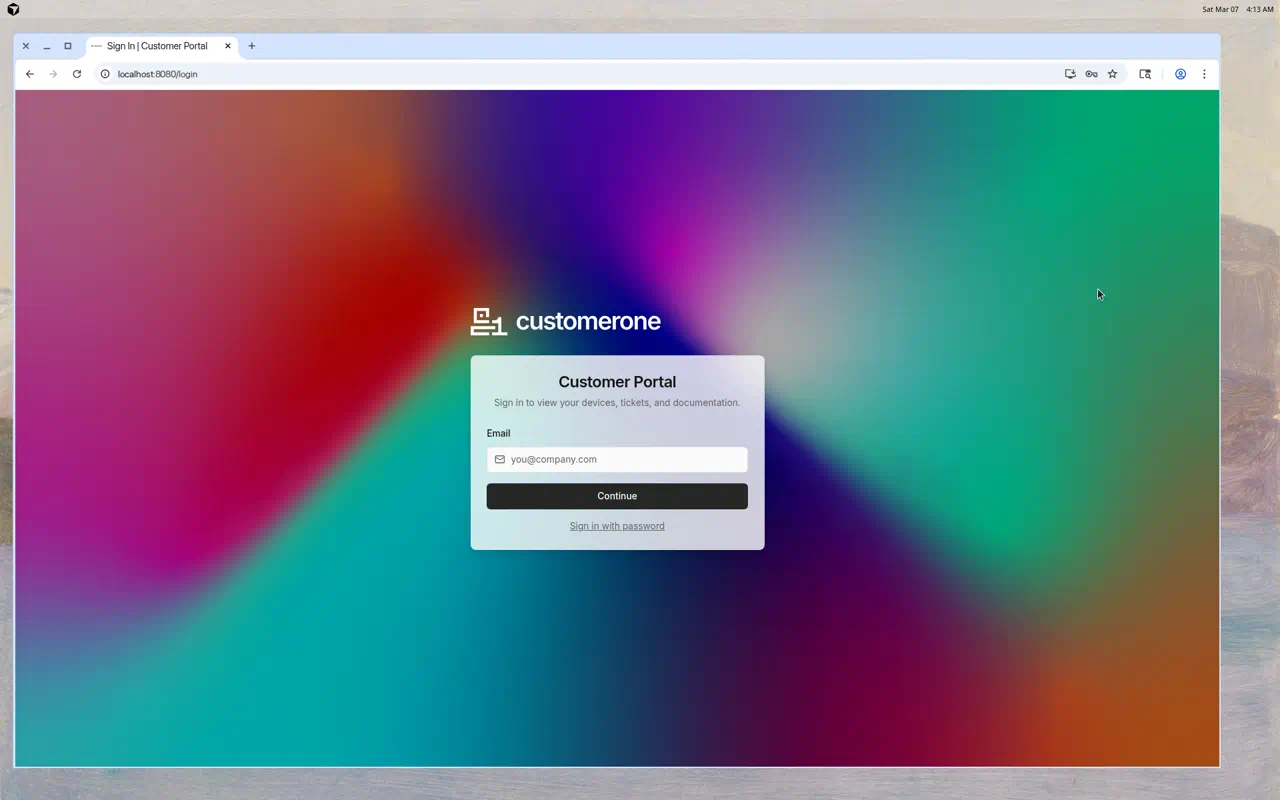
ClientOne is where you access your IT services, submit support tickets, and view your devices. Here's how to sign in. The usual address is https://app.clientone.dev/login; your IT provider may give you a different (custom) URL.
Getting Your Account
Your IT provider will send you an invitation email with a link to create your account. Click the link, set your password, and you're ready to go.
Don't have an account? Contact your IT provider and ask them to send you a ClientOne invitation.
Signing In
- Open the ClientOne URL your IT provider sent you (often
https://app.clientone.devor a custom site) - Enter your email address
- Click Continue
- Enter your password
- Click Sign In
Tip: If your organization uses Single Sign-On (SSO), clicking "Continue" after entering your email may redirect you to your company's sign-in page (e.g., Microsoft) instead of asking for a password.
Sign In with Password
If you see a "Sign in with password" link below the Continue button, you can click it to skip the SSO check and go straight to entering your email and password on one screen.
Forgot Your Password?
- On the login page, click "Forgot password?"
- Enter the email address associated with your account
- Click Send Reset Link
- Check your email for a password reset link
- Click the link and set a new password
If you don't receive the email within a few minutes, check your spam/junk folder. If it's still not there, contact your IT provider.
Single Sign-On (SSO)
If your organization has SSO configured (e.g., through Microsoft Entra / Azure AD):
- Enter your email address
- Click Continue
- You'll be automatically redirected to your organization's login page
- Sign in with your company credentials
- You'll be redirected back to ClientOne, signed in
Staying Signed In
Your session will stay active as you browse ClientOne. If you're inactive for an extended period, you may need to sign in again for security.
Signing Out
- Click your name in the top-right corner of ClientOne
- Select Sign Out
- You'll be returned to the login page
Troubleshooting
| Problem | Solution |
|---|---|
| "Invalid email or password" | Double-check your email and password. Try the password reset flow. |
| No invitation email received | Check spam/junk folders. Contact your IT provider to resend. |
| SSO redirect fails | Contact your IT provider — the SSO configuration may need updating. |
| Account locked | Contact your IT provider to unlock your account. |