Devices
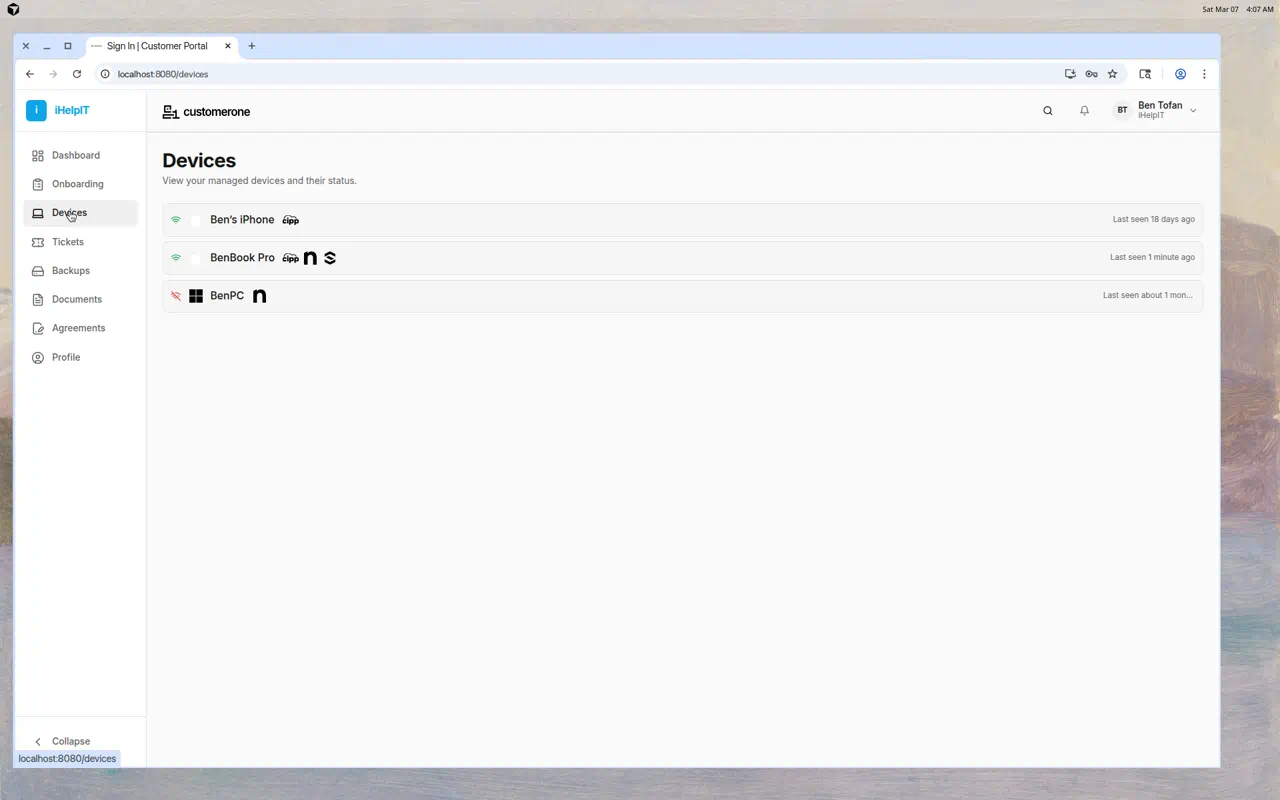
The Devices page shows all the computers, phones, and tablets that your IT provider manages for you. You can see which devices are online, which are offline, and when each was last active.
What You'll See
Each device in the list shows:
- Device name — The name of your computer, phone, or tablet
- Status icon — Green (online) or red (offline)
- Integration icons — Small logos showing which management tools are monitoring this device
- Last seen — How long ago the device last checked in
Understanding Device Status
| Status | What It Means |
|---|---|
| 🟢 Online | The device is connected and being monitored |
| 🔴 Offline | The device hasn't checked in recently — it may be powered off, disconnected, or out of range |
Common Questions
Why is my device showing as offline?
Your device may be offline because:
- It's powered off or in sleep mode
- It's not connected to the internet
- The management agent isn't running (contact your IT provider if this persists)
I don't see one of my devices listed
Your IT provider may not have added it yet. Contact them to get the device enrolled in management.
Can I do anything to my devices from here?
The Devices page is a read-only view — you can see your devices but can't make changes. If you need something done to a device (restart, software install, etc.), submit a support ticket.
Tips
- Check this page if something feels wrong — If a device you're using shows as offline, there might be a connectivity issue worth mentioning to your IT provider
- Note the "last seen" time — If a device hasn't checked in for days, it might need attention