Getting Started with PanelOne
This guide walks you through signing in to PanelOne for the first time, completing the onboarding wizard, and learning the basics of navigating the platform.
What is PanelOne?
PanelOne is a unified MSP operations dashboard. It consolidates data from your RMM, security, backup, cloud, phone, and network tools into a single interface. Instead of jumping between NinjaOne, SentinelOne, Dropsuite, 3CX, Microsoft 365, and UniFi dashboards, you see everything in one place.
Signing In
- Navigate to
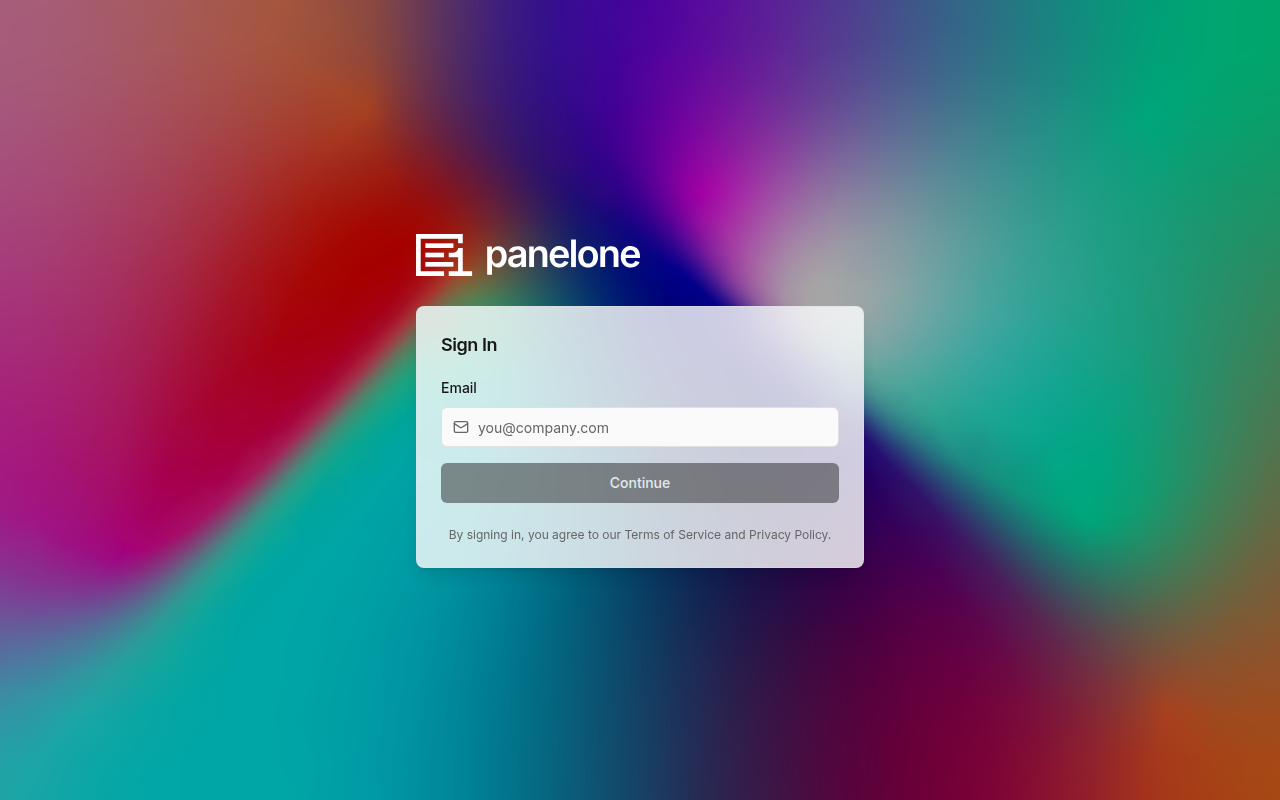
app.panelone.dev(or your custom domain). - Enter your email address and password.
- If your organization requires MFA, you will be prompted for your authenticator code after entering your credentials.
- If you have passkeys/security keys configured, you can use those as an alternative sign-in method.
Note: PanelOne does not have a self-registration flow. Your MSP admin must create your account or send you an invite.
Forgot Password
Click "Forgot password?" on the login page. You'll receive an email with a password reset link.
Session Timeout
PanelOne includes an automatic session timeout for security. When your session is about to expire, you'll see a warning dialog giving you the option to extend the session or sign out.
First-Time Onboarding Wizard
When you sign in for the first time (or if your account has no organization), PanelOne walks you through a multi-step onboarding wizard:
Step 1: Create Your Organization
- Enter your Organization Name (e.g., "Acme IT Services")
- A URL Slug is auto-generated from the name (e.g.,
acme-it). You can customize this. - Click Continue
Step 2: Select Your Tools
Choose which integrations your MSP uses. This tells PanelOne which features to highlight:
- NinjaOne — RMM & device management
- SentinelOne — Endpoint security
- Dropsuite — Backup & recovery
- 3CX — Phone system
- Checkpoint — Network security
- Microsoft 365 — Cloud productivity
Don't worry if you're not ready to connect everything — you can always configure integrations later in Settings → Integrations.
Step 3: Security Configuration (PanelOne only)
- Toggle Require MFA for all team members — strongly recommended
- Review information about hardware security key support (available post-setup)
- Note the recommendation to set up MFA for your own account
Step 4: Review Profile
- Confirm your name, email, and role (Organization Owner)
- Click Continue
Step 5: Complete Setup
- Review a summary of everything you've configured
- Click Go to Dashboard to enter PanelOne
Navigating the Interface
Sidebar Navigation
The left sidebar is your primary navigation. It contains links to every major section:
| Icon | Label | Path |
|---|---|---|
| 📊 | Dashboard | / |
| 🏢 | Clients | /clients |
| 🔑 | Licensing | /licensing |
| 🖥️ | Devices | /devices |
| 👥 | Users | /users |
| 🛡️ | Security | /security |
| 💾 | Backups | /backups |
| 📞 | 3CX Phone | /phone |
| ☁️ | Microsoft 365 | /m365 |
| 📡 | Network | /network |
| 🔔 | Alerts | /alerts |
| 🎫 | Tickets | /tickets |
| 📈 | Reports | /reports |
| 📄 | Documents | /documents |
| 🎯 | SLA | /sla |
| ⚙️ | Settings | /settings |
| 🌐 | Portal Admin | /portal-admin (owners/admins only) |
The sidebar can be collapsed to a narrow icon-only view by clicking the collapse arrow, giving you more screen space.
Header Bar
The header contains:
- Client Selector — Filter the entire dashboard to show data for a specific client. When a client is selected, all pages automatically scope to that client's data. The "Clients" sidebar link is hidden when a client is selected.
- Search — Quick search across the platform
- Notifications — View recent notifications
- User Menu — Access your profile, settings, and sign out
Cross-App Navigation
PanelOne and BillingOne share the same authentication. You can switch between them:
- Look for the cross-app navigation link in the header/sidebar
- Your session carries over — no need to sign in again
- A toast notification confirms your session was restored
Roles and Permissions
PanelOne uses role-based access control. Your role determines what you can see and do:
| Role | Description |
|---|---|
| Owner | Full access to everything, including organization settings and billing |
| Admin | Full access except ownership transfer and some org-level settings |
| Engineer | Access to operational pages (devices, security, tickets, etc.) |
| Viewer | Read-only access to all operational pages |
| Finance | Access to billing and reporting features |
Next Steps
- Configure Integrations — Connect your tools to start pulling data
- Add Clients — Import or create your client list
- Explore the Dashboard — See your unified operations view