Backups
Navigation: Sidebar → Backups
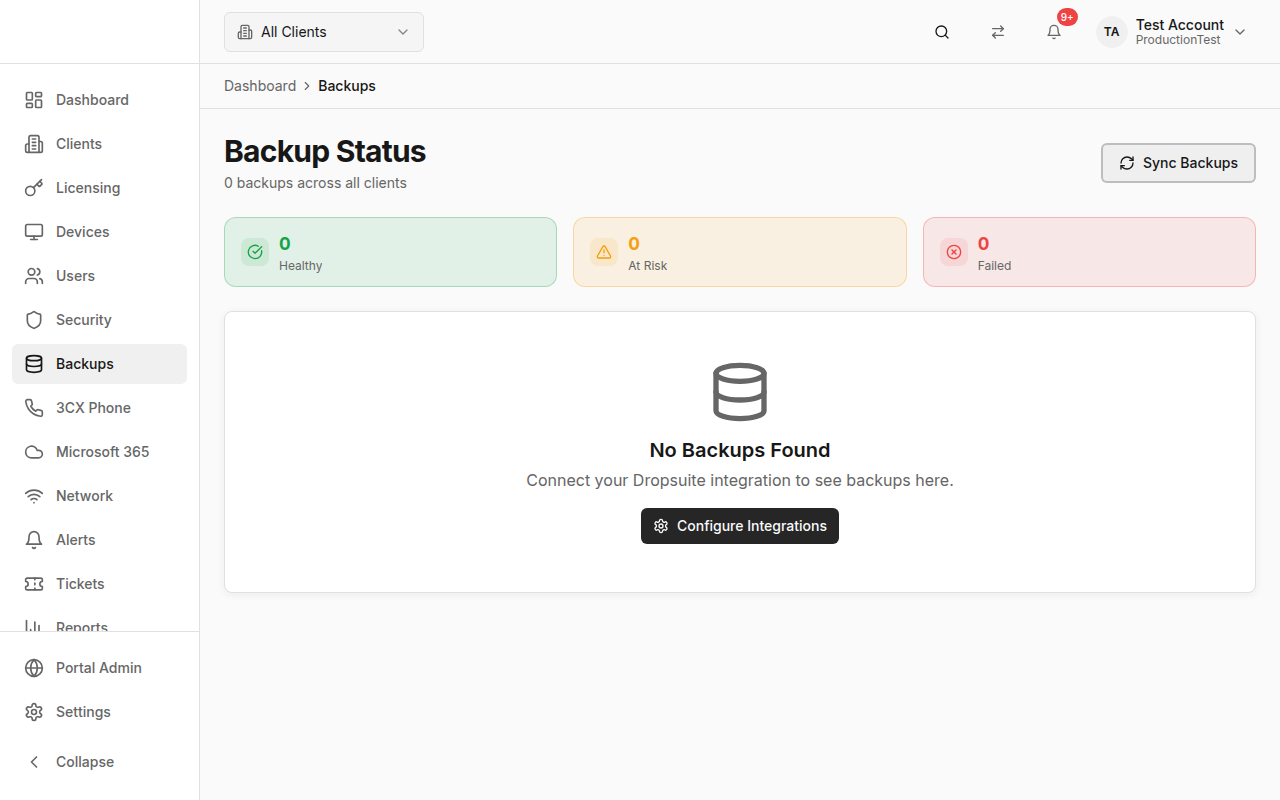
The Backups page monitors M365 backup status across all your clients via the Dropsuite integration. See at a glance which backups are healthy, which are at risk, and which have failed.
Overview
The Backups page provides:
- Summary Cards — Healthy, at-risk, and failed backup counts
- Status Filtering — Click summary cards to filter by status
- Backup List — Individual backup entries with client name and status details
How Backup Data Gets Here
Backup data is synced from Dropsuite, a cloud-to-cloud backup solution for Microsoft 365 (Exchange, SharePoint, OneDrive, Teams).
Prerequisites:
- Enable the Dropsuite integration in Settings → Integrations
- Map clients to their Dropsuite IDs in Clients → Edit → Dropsuite ID
Summary Cards
Three clickable summary cards at the top:
| Card | Color | Meaning |
|---|---|---|
| Healthy | Green | Backup completed successfully |
| At Risk | Yellow | Backup has warnings or hasn't run recently |
| Failed | Red | Backup failed and needs attention |
Click a card to filter the list to only that status. Click again (or click "Clear filter") to show all.
Backup List
Each backup entry shows:
- Status icon — Check (healthy), warning (at-risk), or X (failed)
- Backup name/identifier — Usually the M365 tenant or user
- Client name — Which client this backup belongs to
- Status details — Last backup time, data size, error messages
Backups are sorted with failed and at-risk items first for prioritization.
Syncing Backups
Click Sync Backups to pull the latest status from Dropsuite:
- Click the Sync Backups button in the header
- The sync progress indicator shows in the button
- Once complete, the backup list refreshes with current data
Client-Scoped View
When you select a client in the header:
- Only that client's backups are shown
- The page description changes to show the client name
Tips & Best Practices
- Check backups daily — Failed backups left unattended can mean data loss
- Investigate "at risk" — These often indicate a backup that succeeded but with warnings, or one that hasn't run in a while
- Map all clients to Dropsuite — Unassigned backups won't appear under client views
- Include backup status in client reports — Use the Reports page to generate backup audits
Related Guides
- Clients — Map Dropsuite IDs to clients
- Reports — Generate backup audit reports
- Settings → Integrations — Configure Dropsuite connection
- Dashboard — Backup health widget