Reports
Navigation: Sidebar → Reports
The Reports page lets you generate client reports, use report templates, run NinjaOne queries, and manage NinjaOne knowledge base articles. Use it for client review meetings, compliance documentation, and data analysis.
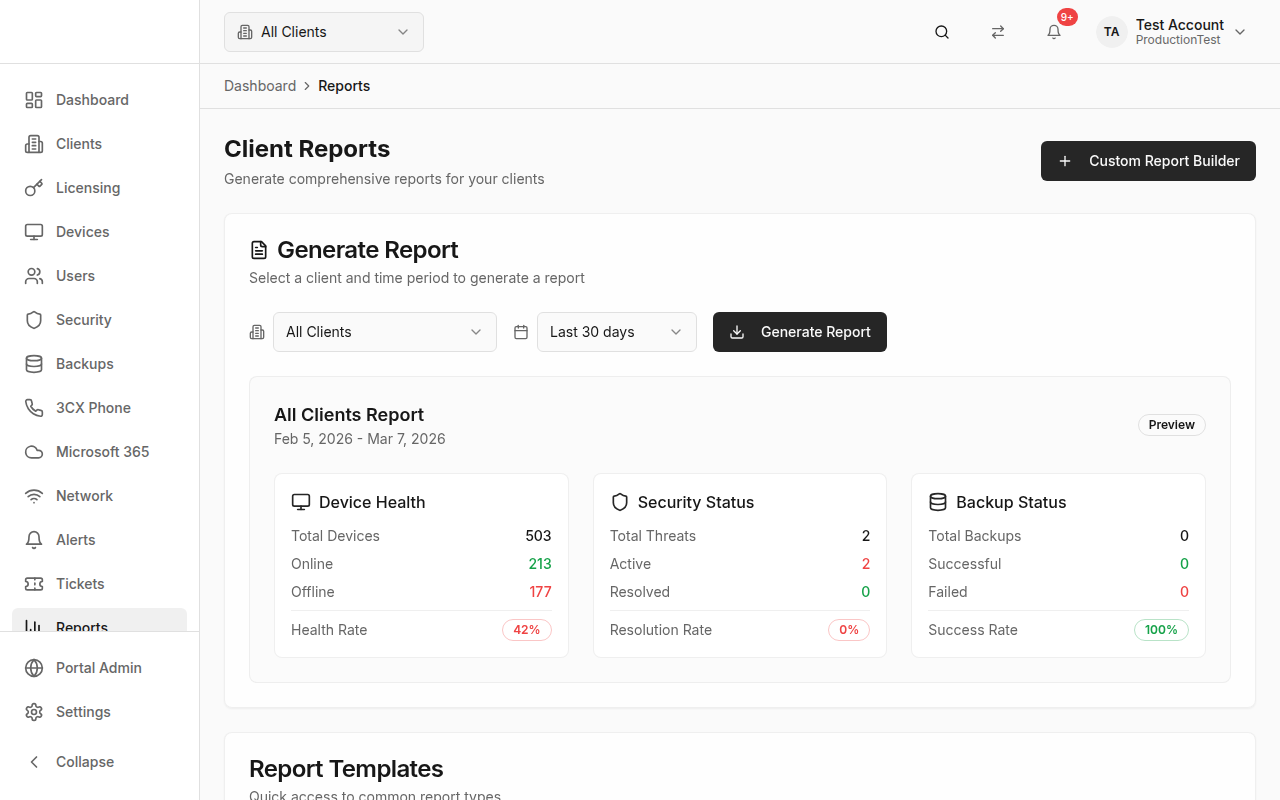
Report Generator
Generate a Report
- Select a Client from the dropdown (or "All Clients")
- Select a Time Period — Last 7 days, 30 days, or 90 days
- Click Generate Report
- A text report downloads automatically
Report Contents
The generated report includes:
- Executive Summary — Overview of IT operations
- Device Health — Total devices, online/offline counts, health rate percentage
- Security Status — Total threats, active/resolved counts, resolution rate
- Backup Status — Total backups, successful/failed counts, success rate
Report Preview
Before downloading, a live preview shows the three sections (Device Health, Security Status, Backup Status) with real data from the selected client and period.
Report Templates
Quick-access templates for common report types:
| Template | Description |
|---|---|
| Executive Summary | High-level overview for management |
| Security Report | Detailed threat analysis |
| Backup Audit | Backup status and compliance |
| Device Inventory | Complete device listing |
Click any template to generate the report.
Custom Report Builder
Navigation: Reports → Custom Report Builder button (or /reports/builder)
The Report Builder provides more granular control over report content and formatting. Build custom reports with:
- Selectable sections and data points
- Custom date ranges
- PDF export capability
- Scheduled report generation
NinjaOne Queries
If NinjaOne is connected, you can run NinjaOne query endpoints directly from PanelOne:
Running a Query
- Select a query endpoint from the dropdown:
- Computer Systems (devices)
- Device Health
- OS Patches
- Software Patches
- Custom Fields
- Disks
- Volumes
- Windows Services
- Results load automatically (up to 50 rows shown)
- View the JSON results in the preview area
Exporting Query Results
Click Export Query Results to download the full results as a JSON file.
Tip: This is powerful for ad-hoc investigations — need to know which devices have a specific service running? Run the Windows Services query and search the results.
NinjaOne Knowledge Base
Manage NinjaOne's knowledge base articles from within PanelOne:
Folders
View the folder structure of your NinjaOne knowledge base. Folders organize articles into categories.
Global Articles
View and manage knowledge base articles:
- Article title/name
- Archive button — Archive articles that are no longer needed
Tips & Best Practices
- Generate reports before client meetings — The Executive Summary template is perfect for QBRs (Quarterly Business Reviews)
- Use the Report Builder for recurring reports — Save custom configurations for repeated use
- Export NinjaOne queries when you need raw data for custom analysis
- Keep knowledge base tidy — Archive outdated articles to keep the KB relevant
Related Guides
- Clients — Client-specific data feeds into reports
- Security Posture — Security data for security reports
- Backups — Backup data for backup audit reports
- Device Health — Device data for inventory reports