Documents
Navigation: Sidebar → Documents
The Documents page is a dual-purpose knowledge base: one side for your internal MSP team (runbooks, SOPs, notes) and the other for customer-facing documentation visible in ClientOne. It also includes a template system for standardizing documentation.
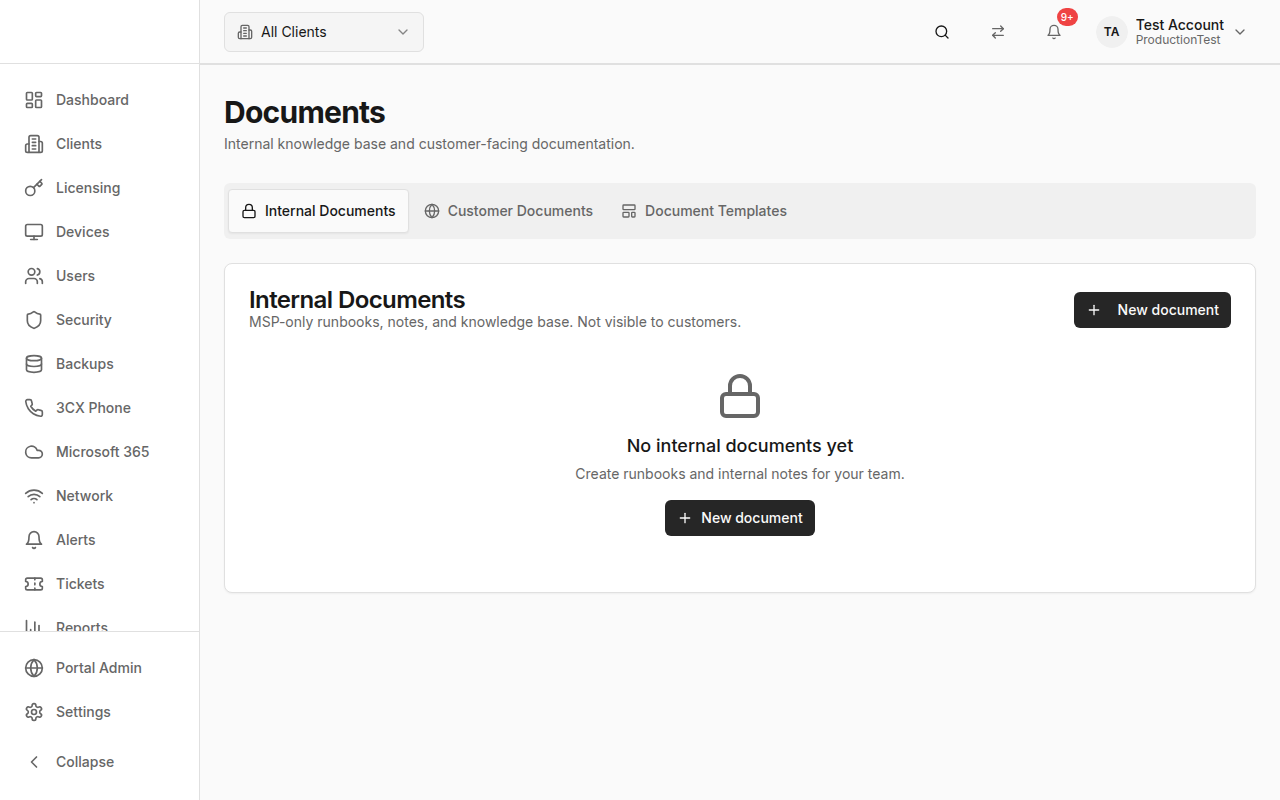
Three Tabs
Internal Documents Tab
MSP-only documentation — Not visible to customers.
Use this for:
- Runbooks and standard operating procedures
- Internal notes and processes
- Technical documentation
- Troubleshooting guides
Customer Documents Tab
ClientOne-visible documentation — Published documents appear in ClientOne.
Use this for:
- User guides for clients
- FAQ documents
- Service descriptions
- How-to articles
- Client-specific documentation
Document Templates Tab
Structured templates — Reusable document structures with sections and placeholders.
Use this for:
- Standardized onboarding documents
- SOP templates with consistent sections
- Compliance documentation frameworks
Working with Internal Documents
Creating an Internal Document
- Navigate to Documents → Internal Documents tab
- Click Add Document (+ button)
- Fill in:
- Title (required)
- Slug — URL-friendly identifier (auto-generated)
- Category — Organize by type
- Content — Rich text or markdown editor
- Click Save
Editing
- Click the edit icon on any document
- Make changes in the editor
- Click Save
Deleting
- Click the delete icon on any document
- Confirm deletion in the dialog
Working with Customer Documents
Creating a Customer Document
- Navigate to Documents → Customer Documents tab
- Click Add Document
- Fill in:
- Title (required)
- Slug — URL-friendly identifier
- Category — Organize by type
- Content — Rich text or markdown
- Client — Optionally scope to a specific client (or leave blank for all clients)
- Published — Toggle whether the document is visible in the portal
- Click Save
Draft vs. Published
- Published documents are visible to end users in ClientOne
- Draft documents (unpublished) are only visible to your MSP team
- A "Draft" badge appears on unpublished documents
Client-Specific Documents
- Leave the client field blank for documents visible to all customers
- Select a specific client to make it visible only to that client
Document Templates
Templates provide a structured framework for creating consistent documentation.
Creating a Template
- Navigate to Documents → Templates tab
- Click Add Template
- Define:
- Name — Template name
- Description — What this template is for
- Content Format — Rich text or markdown
- Category — Organize templates by type
- Structure — Define sections with titles and placeholder content
- Click Save
Using a Template
When creating a new document (internal or customer), you can select a template to pre-populate the document with the template's structure and placeholder content.
Duplicating a Template
Click the duplicate action on any template to create a copy. Useful for creating variations of existing templates.
Import/Export Templates
Export:
- Click the export action on a template
- A JSON file downloads containing the template definition
Import:
- Click Import in the templates section
- Select a JSON template file
- Review the imported template
- Click Save to create it
This enables sharing templates between PanelOne organizations.
Category Filtering
Filter templates by category using the category dropdown. This helps when you have many templates organized into groups.
Content Formats
PanelOne supports two content formats:
| Format | Best For |
|---|---|
| Rich Text | Visual editing with formatting toolbar |
| Markdown | Technical documentation with code blocks |
Client-Scoped View
When a client is selected in the header, the Customer Documents tab filters to show:
- Documents scoped to that specific client
- Documents with no client scope (available to all)
Tips & Best Practices
- Build internal runbooks first — Document your standard procedures so any team member can follow them
- Use templates for consistency — Create templates for common document types (onboarding checklists, incident reports, etc.)
- Publish customer docs selectively — Start with FAQ and basic guides, then expand
- Export templates to share — If you have multiple PanelOne orgs, export/import templates between them
- Keep categories organized — A clean category structure helps everyone find documents quickly
Related Guides
- ClientOne — How end users see published documents
- Portal Admin — Manage portal settings and customer access