Tickets
Navigation: Sidebar → Tickets
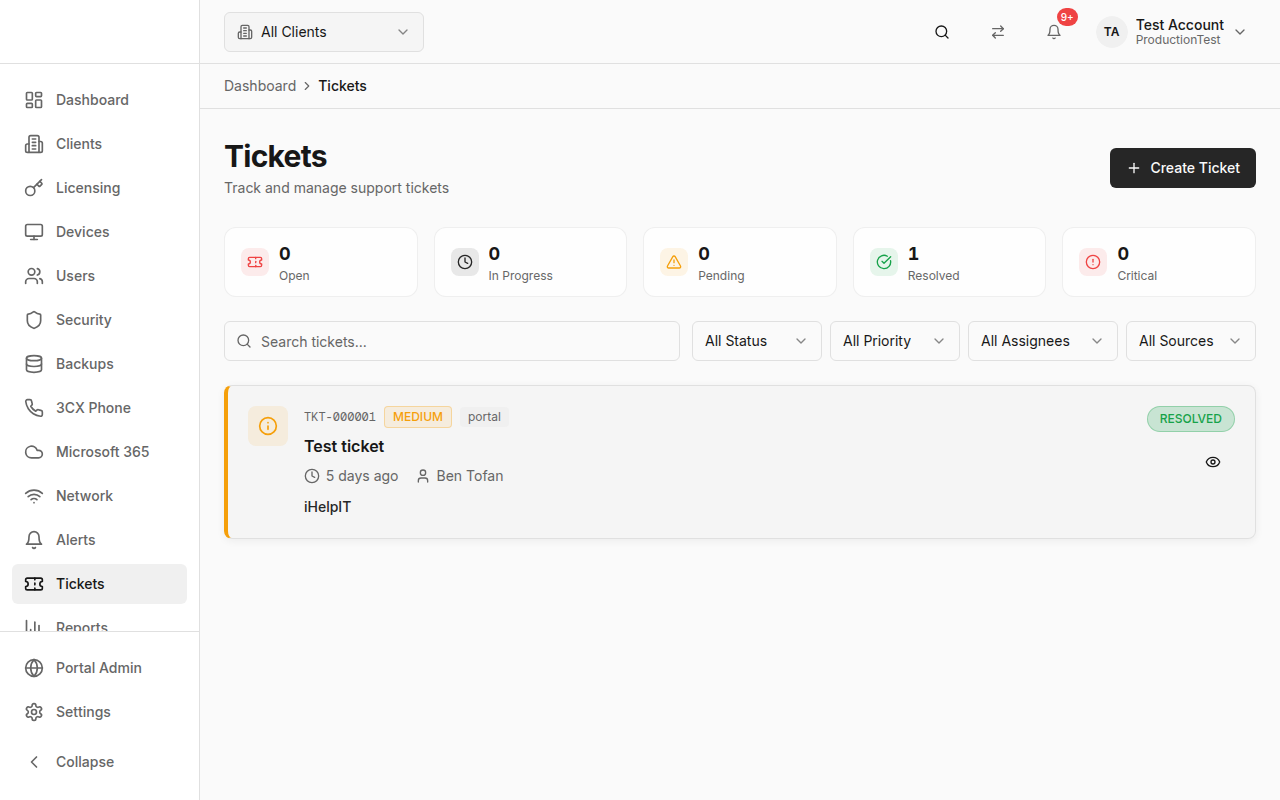
The Tickets page lets you manage support tickets across your MSP. Create tickets manually, sync them from NinjaOne, filter by status and priority, assign to team members, and track resolution.
Overview
The Tickets page provides:
- Stats Cards — Open, in-progress, and resolved ticket counts
- Filters — Status, priority, assignee, source, and search
- Ticket List — All tickets with priority indicators and assignments
- Create Ticket — Manual ticket creation dialog
- Ticket Detail — Full ticket view with comments and history
How Tickets Get Here
Tickets come from two sources:
Manual Creation
Create tickets directly in PanelOne for any client.
NinjaOne Sync
If NinjaOne is connected, tickets sync automatically:
- Ticket status maps to PanelOne statuses
- Client mapping ensures tickets appear under the right client
- A "View in NinjaOne" link lets you jump to the ticket in NinjaOne's interface
Stats Cards
Summary statistics at the top of the page:
| Card | Shows |
|---|---|
| Open | Tickets waiting to be started |
| In Progress | Tickets actively being worked |
| Resolved | Recently resolved tickets |
| Total | All tickets |
Click any card to filter the list to that status.
Creating a Ticket
- Click Create Ticket in the header
- Fill in the ticket form:
- Title (required) — Brief description of the issue
- Description — Detailed explanation
- Client — Which client this ticket is for (defaults to selected client)
- Priority — Low, Medium, High, Urgent
- Assignee — Team member to handle the ticket
- Click Create
The ticket appears immediately in the list.
Ticket List
Each ticket shows:
- Priority indicator — Color-coded badge (urgent = red, high = orange, medium = yellow, low = gray)
- Ticket number — Auto-generated reference number
- Title — Ticket subject
- Client name — Which client raised the ticket
- Assignee — Who it's assigned to
- Status — Open, In Progress, Resolved, Closed
- Source — Manual or NinjaOne (with integration icon)
- Timestamp — When it was created
Click any ticket to open the Ticket Detail Dialog.
Ticket Detail Dialog
The detail dialog shows:
- Full ticket information (title, description, priority, status)
- Client and assignee details
- Comments/notes — Add internal notes and updates
- Status updates — Change ticket status
- NinjaOne link — If synced from NinjaOne, a direct link to view it there
Filtering
Search
Filter by ticket title, ticket number, or description.
Status Filter (URL-synced)
- All, Open, In Progress, Resolved, Closed
- The status filter is stored in the URL, so bookmarkable
Priority Filter (URL-synced)
- All, Low, Medium, High, Urgent
Assignee Filter
- All, Unassigned, or select a specific team member
Source Filter
- All, Manual, NinjaOne
NinjaOne Integration
When NinjaOne is connected:
- Tickets sync from NinjaOne during the sync process
- Each synced ticket has a "View in NinjaOne" link
- The link opens the ticket in your NinjaOne instance for actions not available in PanelOne
Client-Scoped View
When a client is selected in the header:
- Only that client's tickets are shown
- The "Create Ticket" dialog defaults to that client
Tips & Best Practices
- Assign tickets immediately — Unassigned tickets can fall through the cracks
- Use priority levels consistently — Establish team standards for what constitutes each priority
- Check the "Unassigned" filter daily — Ensure every ticket has an owner
- Use ticket notes for internal communication — Keep a paper trail of what was done
- Sync from NinjaOne regularly — Keep PanelOne in sync with your RMM ticketing
Related Guides
- Clients — Tickets are linked to clients
- SLA Dashboard — Response and resolution time tracking
- Dashboard — Ticket overview widget