Users
Navigation: Sidebar → Users
The Users page displays all Microsoft 365 users across your managed clients. It provides visibility into MFA adoption, admin accounts, disabled accounts, and user details — essential for maintaining security compliance across your client base.
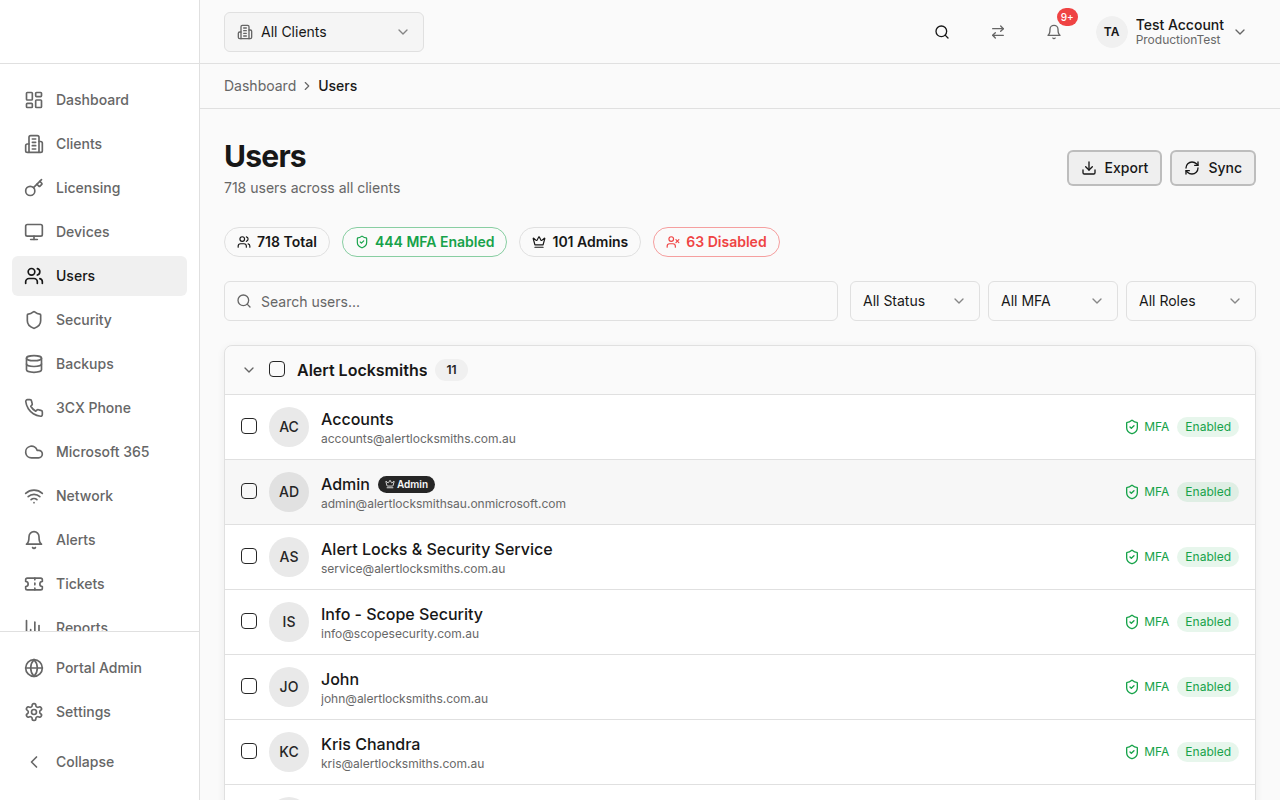
Overview
The Users page shows M365 users synced via CIPP (CyberDrain Improved Partner Portal) or direct Microsoft Graph integration. Key features:
- Stats Badges — Total users, MFA enabled count, admin count, disabled count
- Grouped by Client — Users organized under collapsible client groups
- Per-user info — Display name, email, account status, MFA status, admin badge
How Users Get Here
Users are synced from Microsoft 365 through either:
- CIPP Integration — Recommended for multi-tenant MSPs (partner mode)
- Microsoft Graph — Direct API integration for single or multi-tenant
Go to Settings → Integrations to configure your Microsoft 365 connection.
Stats Badges
At the top of the page:
| Badge | Meaning |
|---|---|
| Total | Total number of M365 users |
| MFA Enabled (green) | Users with multi-factor authentication active |
| Admins | Users with administrative roles |
| Disabled (red) | User accounts that are disabled |
Filtering & Searching
Search
Type to filter users by display name, email, or UPN (User Principal Name).
Filter Options
- MFA Status — All, MFA Enabled, MFA Disabled, N/A
- Account Status — All, Enabled, Disabled
- Role — All, Admin, Standard User
- License — All, Licensed, Unlicensed
Grouped by Client
When viewing all clients (no client selected in the header):
- Users are organized in collapsible client groups
- Each group shows the client name and user count
- Click the group header to expand/collapse
- Use the group checkbox to select all users in a client
When a specific client is selected in the header, users show as a flat list.
Selecting & Exporting
Select Users
- Click individual checkboxes to select specific users
- Use group checkboxes to select all users in a client group
- The selection count appears in the header
Export to CSV
- Select the users you want to export (or export all if none selected)
- Click Export in the header
- A CSV file downloads containing:
- Display Name, Email, User Principal Name
- Client, Account Status, MFA Enabled, Is Admin
Sync from CIPP
Click the Sync button to trigger a fresh sync of user data from CIPP. This pulls:
- User profiles and contact info
- MFA registration status
- Admin role assignments
- Account enabled/disabled status
User Detail Page
Navigation: Click any user → User Detail
The User Detail page shows comprehensive information about a single M365 user:
- Profile — Display name, email, UPN, job title, department
- Security — MFA status, last sign-in, admin roles
- Licenses — Assigned M365 licenses
- Client — Which client this user belongs to
- Integration source — CIPP or Microsoft Graph
Tips & Best Practices
- Monitor MFA adoption — The MFA Enabled badge gives you an instant read on security compliance. Aim for 100%.
- Identify disabled accounts — Disabled accounts may indicate offboarded employees that still have licenses assigned.
- Export for client reports — Use the CSV export to create user inventories for client review meetings.
- Check admin accounts regularly — Ensure only authorized users have admin roles.
Related Guides
- Microsoft 365 — Full M365 management including user actions
- Security Posture — MFA adoption as part of the security score
- Settings → Integrations — Configure CIPP or Microsoft Graph