Device Health
Navigation: Sidebar → Devices
The Device Health page gives you a real-time view of every managed device across all clients. Monitor online/offline status, filter by OS and device type, perform bulk actions, and drill into individual device details.
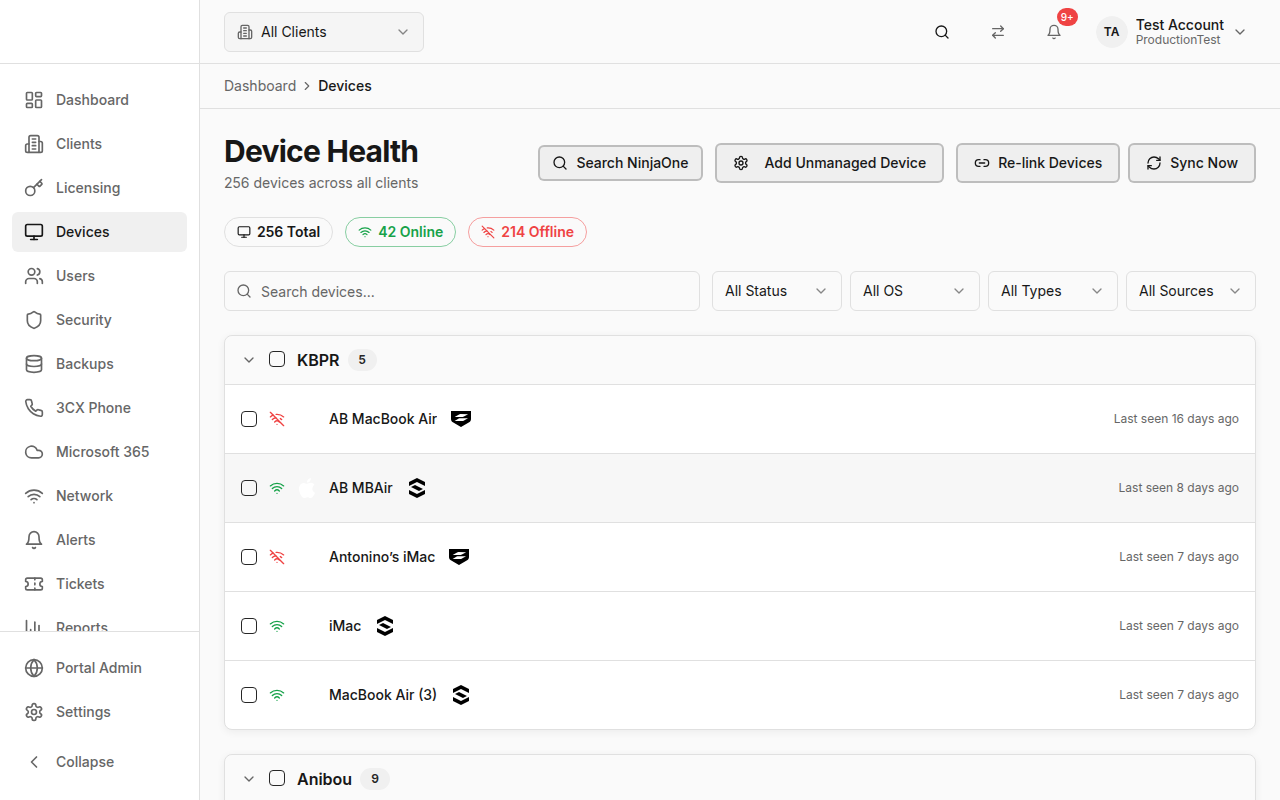
Device List Overview
The main view shows all devices with:
- Stats Badges — Total devices, online count (green), offline count (red)
- Grouped by Client — Devices are organized under collapsible client groups
- Per-device info — Name, status icon (online/offline), platform icon, integration source badges, last seen time
How Devices Get Here
Devices are synced from your connected RMM tools:
- NinjaOne — Primary RMM for many MSPs
- Gorelo — Alternative RMM
- SuperOps — Alternative RMM
- Syncro — Alternative RMM
- SentinelOne — Security agent inventory
- Sophos — Endpoint protection inventory
- Bitdefender — Endpoint protection inventory
- Jamf — Apple device management
- CIPP/Intune — Microsoft Intune managed devices
PanelOne automatically deduplicates and merges devices from multiple sources into a unified view.
Filtering & Searching
Search Bar
Type to filter devices by name or OS.
Filter Dropdowns
- Status — All, Online, Offline
- OS — All, Windows, macOS, Linux, Other
- Type — All, Workstation, Server, Network, Mobile, Other
- Source — Filter by integration source (NinjaOne, SentinelOne, CIPP, etc.)
Sync from RMM
Click Sync Now to trigger a fresh sync from your primary RMM integration. The button shows the syncing animation while in progress.
PanelOne automatically detects your primary RMM (NinjaOne, Gorelo, SuperOps, or Syncro) and syncs from it.
Re-link Devices
Click Re-link Devices to run the automatic device-linking process. This:
- Matches devices across multiple integration sources (e.g., a device in both NinjaOne and SentinelOne)
- Clears stale links from devices that no longer exist
- Shows a summary: "Linked X devices, cleared Y stale links"
Add Unmanaged Device (NinjaOne)
If you have NinjaOne connected and a client selected with a NinjaOne mapping:
- Click Add Unmanaged Device
- Enter the device display name
- Click Create
This creates an unmanaged device record in NinjaOne for tracking non-agent devices like printers, network equipment, etc.
NinjaOne Device Search
When NinjaOne is your primary RMM, a search popover is available that lets you quickly find devices by NinjaOne external ID.
Bulk Actions
- Use the checkboxes to select individual devices, or use the group checkbox to select all devices in a client group
- When devices are selected, a Bulk Action Bar appears at the top
- Available bulk actions depend on the selected devices and their integration sources
Keyboard Navigation
- ↓ / ↑ Arrow Keys — Move focus between devices
- Enter — Open the focused device's detail page
- Escape — Clear focus
Device Detail Page
Navigation: Click any device → Device Detail
The Device Detail page provides comprehensive information about a single device.
Overview Section
- Device name and online/offline status
- OS information — Name, version
- Device type — Workstation, server, etc.
- Client — Which client this device belongs to
- Last seen — When the device last checked in
- Integration sources — Which tools report this device
- IP address, model, and other hardware details
Device Actions
Remote actions available depend on the integration source:
- NinjaOne — Reboot, shutdown, wake-on-LAN, run script, remote access
- SentinelOne — Scan, quarantine, network isolation
- CIPP — Intune actions (sync, wipe, retire)
- Gorelo — Remote actions
- UniFi — Network device actions
Software Inventory Tab
- Complete list of installed software
- Version numbers and install dates
- Filter and search software
Patch Compliance Tab
- Pending OS patches
- Severity levels (critical, important, moderate, low)
- KB numbers and categories
Vulnerabilities Tab
- CVEs affecting this device
- CVSS scores and severity
- Patch availability indicators
Provider Data Panel
- Raw data from each integration source
- Collapsible sections for NinjaOne, SentinelOne, etc.
Activity Timeline
- Chronological log of device events
- Status changes, actions taken, sync events
Windows Services
- List of Windows services on the device
- Running/stopped status
Manual Linking
If automatic linking didn't catch a device:
- Click the Link button
- Search for the device in another integration source
- Confirm the link
Tips & Best Practices
- Check offline devices daily — Use the status filter to quickly find devices that haven't checked in
- Use Re-link after adding new integrations — This ensures cross-platform device matching
- Monitor the "last seen" time — Devices offline for extended periods may need attention
- Use bulk actions for common operations like mass reboots during maintenance windows
Related Guides
- Clients — Map integration IDs so devices are assigned to the right client
- Security Posture — Security threats and vulnerabilities for devices
- Integrations Overview — Which integrations provide device data