Settings
Navigation: Sidebar → Settings
The Settings area contains 18 configuration pages for managing your PanelOne organization. From personal profile settings to integration connections, ClientOne configuration, and team management, everything is configured here.
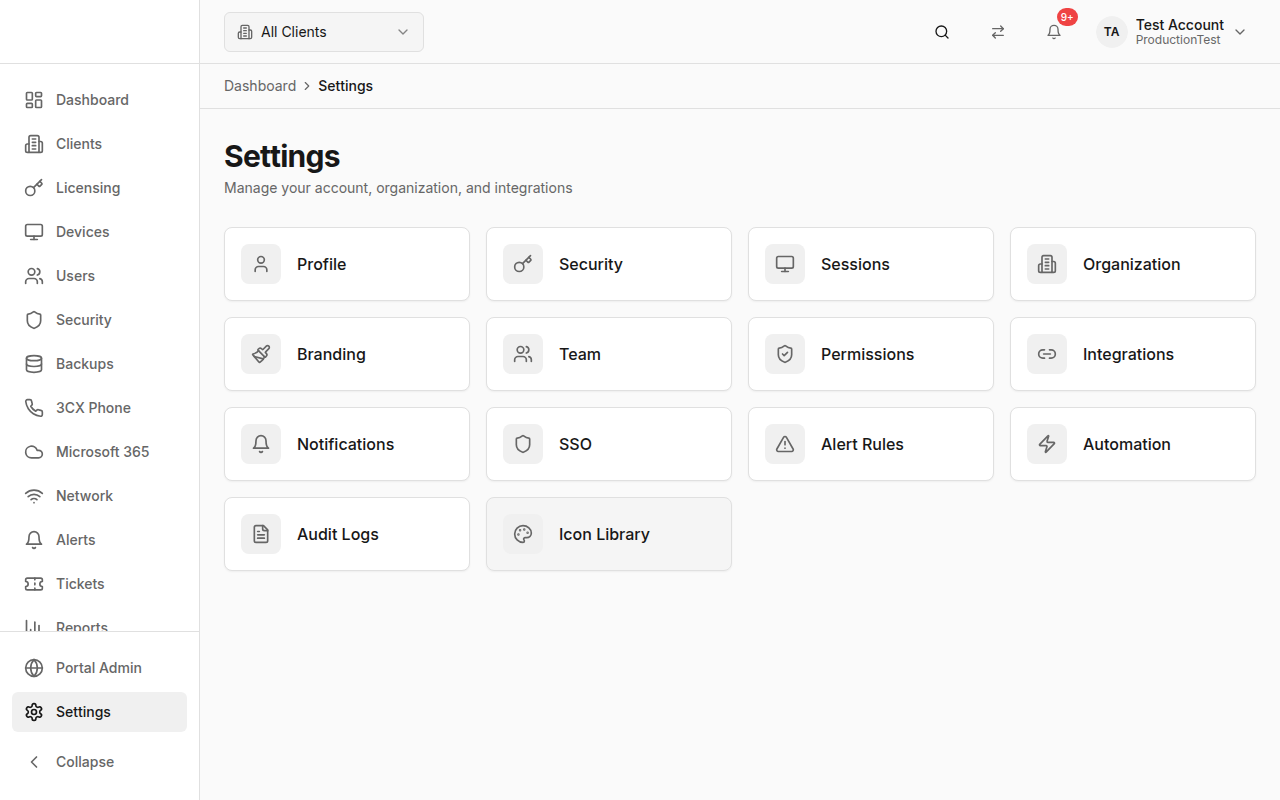
Settings Overview
Navigation: Settings → Overview (default landing)
A grid of all settings categories with icons. Click any card to navigate to that settings page.
Profile
Navigation: Settings → Profile
Manage your personal account information:
- Full Name — Update your display name
- Email — Your sign-in email
- Avatar — Upload a profile picture
- Timezone and locale preferences
Security
Navigation: Settings → Security
Configure your personal security settings:
Multi-Factor Authentication (MFA)
- Click Enable MFA
- Scan the QR code with your authenticator app (Google Authenticator, Authy, etc.)
- Enter the verification code
- Save your recovery codes in a secure location
Passkeys / Security Keys
- Register FIDO2/WebAuthn security keys (YubiKey, etc.)
- Use passkeys as a passwordless sign-in option
- Manage registered keys
Recovery Codes
- View your MFA recovery codes
- Generate new recovery codes if needed
- Each code can only be used once
Sessions
Navigation: Settings → Sessions
View and manage active sessions:
- Current session — Highlighted with "Current" badge
- Other sessions — Devices and browsers with active sessions
- Terminate — End any session you don't recognize
- Session details include: browser, OS, IP address, last active time
Organization
Navigation: Settings → Organization
Manage organization-level settings:
- Organization Name — Your MSP's display name
- URL Slug — Used in your PanelOne URL
- Require MFA — Enforce MFA for all team members
- Organization ID — Reference identifier
Branding
Navigation: Settings → Branding
Customize PanelOne's appearance with your MSP's branding:
- Logo — Upload your company logo (appears in the sidebar and header)
- Colors — Customize primary and accent colors
- White-labeling — Make PanelOne look like your own product for client-facing views
Branding settings affect what your team sees and can also extend to ClientOne (and related portal branding under Portal Admin).
Team
Navigation: Settings → Team
Manage your team members:
Inviting Team Members
- Click Invite Member
- Enter their email address
- Select their role:
- Owner — Full access, organization management
- Admin — Full access, team management
- Engineer — Operational access (devices, security, tickets)
- Viewer — Read-only access
- Finance — Billing and reporting access
- Click Send Invite
- They receive a magic-link email to join
Managing Members
- View all team members and their roles
- Change a member's role
- Remove team members
- View pending invitations
Permissions
Navigation: Settings → Permissions
Configure role-based permission settings:
- Define what each role can access
- Customize permissions beyond the default role templates
- Granular control over page access and actions
Integrations
Navigation: Settings → Integrations
This is the most critical settings page — it's where you connect PanelOne to all your tools.
Supported Integrations
| Category | Integration | What It Provides |
|---|---|---|
| RMM | NinjaOne | Devices, clients, alerts, tickets, software, patches |
| RMM | Gorelo | Devices, clients |
| RMM | SuperOps | Devices, clients |
| RMM | Syncro | Devices, clients |
| Security | SentinelOne | Endpoint threats, software inventory |
| Security | Sophos | Endpoint protection, account health |
| Security | Bitdefender | Endpoint protection |
| Security | Checkpoint | Email security alerts |
| Cloud | Microsoft 365 / CIPP | Users, licenses, groups, Intune, security |
| Network | UniFi | Sites, devices, clients, WAN health |
| Phone | 3CX | Phone extensions, call status |
| Backup | Dropsuite | M365 backup status |
| Backup | Jamf | Apple device management |
| Billing | Pax8 | Subscriptions, licenses |
| Billing | Xero | Invoices, accounting |
| Resend | Transactional email delivery | |
| SendGrid | Transactional email delivery | |
| Domains & hosting | Synergy Wholesale | Domains, hosting, and SSL certificate records (consumed in BillingOne → Domains & Hosting after sync) |
Connecting an Integration
- Find the integration in the list
- Click Configure or Connect
- Enter the required credentials:
- API keys, client IDs, client secrets
- Base URLs for self-hosted tools
- OAuth tokens for cloud services
- Click Test Connection to verify
- Click Save
Sync Schedules
Configure how often each integration syncs:
- Manual only — Sync on demand
- Scheduled — Automatic sync at set intervals
- View last sync time and status
Test Connectivity
Click Test on any integration to verify the connection is working. This checks API credentials and accessibility.
Email notifications
Navigation: Settings → Email notifications
Choose which product events send email to your team. This page is separate from the in-app notification center.
Notifications
Navigation: Settings → Notifications
Configure in-app and delivery preferences:
- In-app notifications — Configure what appears in the notification bell
- Notification channels — Connect email delivery via Resend or SendGrid where applicable
SSO
Navigation: Settings → SSO
Configure Single Sign-On with Microsoft Entra (Azure AD):
- Enable SSO for your organization
- Configure Entra application settings
- Map SSO attributes to PanelOne roles
- Test SSO configuration
Two different Entra sign-in experiences:
| Who | Where to configure | Doc |
|---|---|---|
| Your MSP’s PanelOne users (staff) | Settings → SSO | Use the in-product wizard. Register an Entra app in your tenant, add redirect URLs PanelOne provides, and map group or attribute claims to roles. |
| End users in ClientOne (your clients) | Portal Admin → per-client SSO and/or Settings → ClientOne SSO (multi-tenant Microsoft 365) | Configuring Entra ID SSO for ClientOne (per client’s tenant) |
The walkthrough in Configuring Entra ID SSO for ClientOne is for the end-user Entra app in each customer’s tenant, not the Entra app used for staff on Settings → SSO.
Alert Rules
Navigation: Settings → Alert Rules
Configure custom alert thresholds and rules:
- Set severity thresholds for different alert types
- Enable/disable specific alert categories
- Configure escalation rules
- Define which alerts trigger notifications
Automation
Navigation: Settings → Automation
Set up automated workflows:
- Trigger actions based on events
- Auto-acknowledge certain alert types
- Scheduled automation rules
- Integration-specific automations
Audit Logs
Navigation: Settings → Audit Logs
View the complete audit trail for your organization:
- All user actions are logged
- Filter by user, action type, and date range
- Includes: logins, configuration changes, data modifications
- Useful for compliance and security investigations
ClientOne tickets
Navigation: Settings → ClientOne tickets
Choose which ticket field definitions are visible in ClientOne when your clients view or create support tickets, so the right data is shown without overwhelming end users.
ClientOne SSO
Navigation: Settings → ClientOne SSO
Configure multi-tenant “Sign in with Microsoft 365” for ClientOne: Azure app registration, Partner Center-related values where applicable, and optional ClientOne origin (a white-label base URL for ClientOne, default https://app.clientone.dev). This is the MSP-wide ClientOne sign-in experience; you still use Portal Admin to enable access and, where needed, per-client consent.
End-user Entra in each client’s own tenant (invite + email domain) is also covered in Configuring Entra ID SSO for ClientOne under Portal Admin.
Client note tags
Navigation: Settings → Client note tags
Create and manage tags for client notes in PanelOne, including which tags can be used and visibility options for your team and ClientOne.
Icon Library
Navigation: Settings → Icon Library
Browse available icons used throughout PanelOne:
- Search icons by name
- Preview icons at different sizes
- Reference for customization and branding
Tips & Best Practices
- Connect integrations first — PanelOne is only useful with data flowing in
- Test every integration after connecting — Catch credential issues early
- Enforce MFA organization-wide — Set it in Organization settings
- Review audit logs periodically — Know who's doing what
- Set up notification preferences — Avoid alert fatigue by configuring what you want to be notified about
- Invite your whole team with appropriate roles — Don't share accounts
Related Guides
- Getting Started — Initial setup walks through key settings
- Integrations Overview — Detailed guide for each integration
- Portal Admin — ClientOne configuration
- ClientOne — What end users see