Clients
Navigation: Sidebar → Clients
The Clients page is the central hub for managing all of your client organizations. Each client represents a business you manage — their devices, users, backups, and integrations are all linked through their client record.
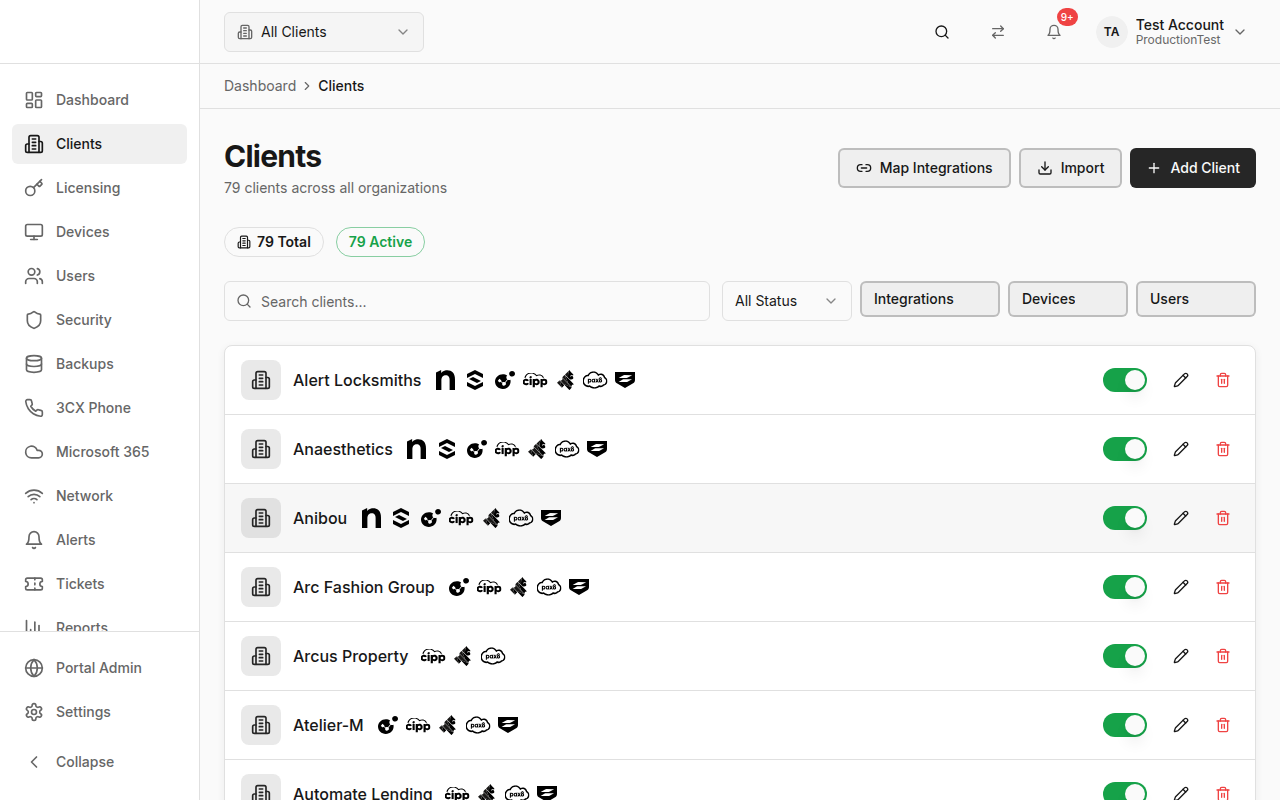
Client List
The Clients page shows all clients in your organization with summary statistics:
- Stats Badges — Total count, active count, inactive count
- Search — Filter clients by name
- Filters — Filter by status (active/inactive), integration mappings, device count ranges, and user count ranges
Each client row displays:
- Client name
- Active/inactive status
- Connected integration icons (NinjaOne, SentinelOne, M365, etc.)
- Quick actions (edit, toggle active, delete)
Adding a Client
- Click Add Client in the top-right
- Fill in the Client Name (required)
- Toggle Active status
- Map Integration IDs — if you have integrations enabled, fields for each will appear automatically:
- NinjaOne Organization ID
- SentinelOne Site ID
- Microsoft Tenant ID
- Dropsuite ID
- 3CX ID
- And more...
- Click Create
Tip: You can add integration mappings for tools you haven't connected yet by clicking "Map to other integrations" at the bottom of the form.
Importing Clients from Integrations
Instead of manually adding clients, you can bulk-import from your connected tools:
- Click the Import dropdown button
- Choose a source: NinjaOne, SentinelOne, CIPP, Microsoft 365, Gorelo, Syncro, SuperOps, Checkpoint, Pax8, or Sophos
- PanelOne fetches the organization/site list from that integration
- Select which entities to import as clients
- Click Import — PanelOne creates client records and automatically maps the integration IDs
Bulk Integration Mapping
If you already have clients but need to map them to integration entities:
- Click the Map Integrations dropdown button
- Choose an integration (CIPP/M365, NinjaOne, SentinelOne, Gorelo, Checkpoint, UniFi, Pax8, Sophos)
- A mapping dialog opens showing:
- Your PanelOne clients on one side
- Available integration entities on the other
- Match each client to their corresponding integration entity
- Click Save Mapping
This is essential for data to flow correctly — devices from NinjaOne are assigned to clients based on these mappings.
Editing a Client
- Click the pencil icon on any client row
- Update the client name, status, or integration IDs
- Click Update
Deleting a Client
- Click the trash icon on a client row
- Confirm the deletion in the dialog
Warning: Deleting a client removes all device associations. This cannot be undone.
Toggling Active/Inactive
Click the status toggle on a client to quickly switch them between active and inactive. Inactive clients still retain their data but can be filtered out of views.
Client Detail Page
Navigation: Click any client name → Client Detail
The Client Detail page provides a deep dive into a single client with multiple tabs:
Overview Tab
- Client information (name, status, creation date)
- Integration mappings with icons
- Quick stats (devices, users, threats)
- NinjaOne organization details (if mapped)
- Generate NinjaOne installer links
Devices Tab
- All devices belonging to this client
- Online/offline status
- Click any device to go to Device Detail
Users Tab
- M365 users associated with this client's tenant
- MFA status for each user
- Admin indicators
Threats Tab
- Active security threats from SentinelOne
- Severity indicators and threat actions
Backups Tab
- Dropsuite backup status for this client
- Healthy, at-risk, and failed backups
M365 Tab
- Microsoft 365 overview specific to this client
- License usage, security score, domain health
Subscriptions Tab
- Pax8 subscriptions mapped to this client
- License quantities and pricing
- Edit subscription quantities
NinjaOne Features
If the client has a NinjaOne mapping, additional capabilities are available:
- End Users — View and manage NinjaOne end users for this organization
- Organization Documents — View and archive NinjaOne documentation
- Installer Generation — Generate NinjaOne agent installer links
- Custom Fields — View and edit NinjaOne location custom fields
- Custom Tabs — Create custom tabs in NinjaOne
- Checklists — Create checklist templates
- Node Roles — Create and manage node roles
- Document Templates — View NinjaOne document templates with fields
Filters Explained
Status Filter
- All — Show all clients
- Active — Only active clients
- Inactive — Only inactive clients
Integrations Filter
- Has — Show clients that have specific integration mappings
- Missing — Show clients that are missing specific integration mappings
- Select one or more integration types to filter by
Device/User Count Filters
- Set minimum and/or maximum thresholds for device count or user count
- Useful for finding clients with no devices mapped (min: 0, max: 0)
Tips & Best Practices
- Map integrations early — Devices, users, and other data can only be assigned to clients if integration IDs are mapped
- Use bulk import instead of manual creation when first setting up PanelOne
- Check for unmapped clients regularly using the integrations filter with "Missing" mode
- Use the Client Detail page for client review meetings — it has everything in one place
Related Guides
- Device Health — Monitor client devices
- Integrations Overview — What each integration provides
- Settings → Integrations — Connect your tools